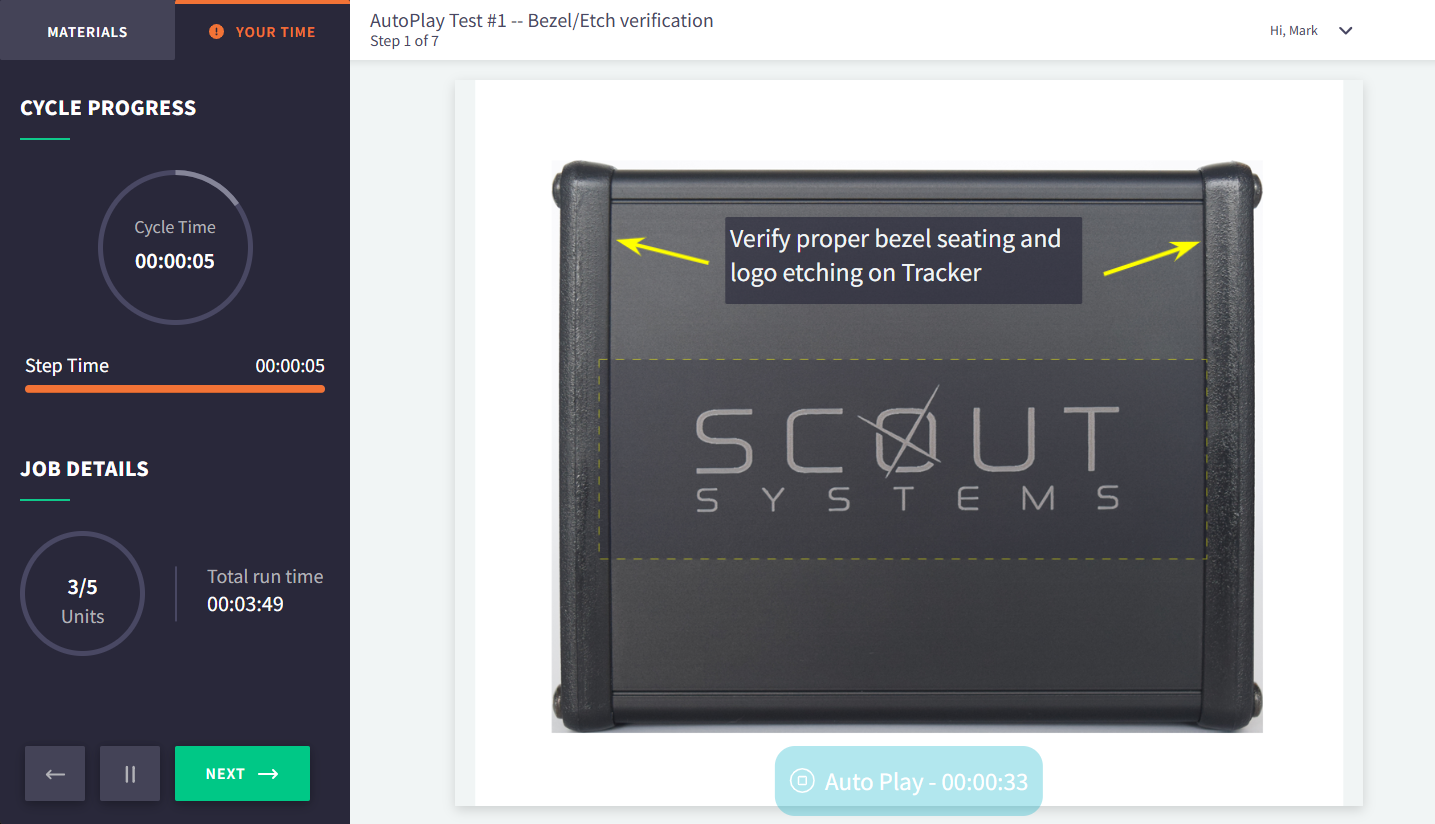

What exactly is Autoplay?
Many of you know just how long we've been talking about this pending feature! Some of you have no idea what we're talking about. All of you need to know just how powerful Compass has become for your Operators. After 6+ months of conceptualizing, coding, testing, and adjusting, we're proud to say that Autoplay is here!
**"Autoplay" is the automated sequencing of steps within Compass based on either your pre-set step time set in Designer or your Operator's actual build pace. **
We will outline below how to turn this feature on, discuss some of the caveats to it's regular use, and guide you along in the controlled engagement of this feature for your facility.
Setting 'Experience' Level
Let's begin by confirming that Autoplay is essentially disengaged for you at the beginning. Nothing that we've deployed for Autoplay is turned on by default, save for one new element to get you started.
We have introduced user-specific 'Experience' level labeling. Everyone currently in the system will default to 'Veteran', while those new users that you add in the future will be set to 'Rookie.
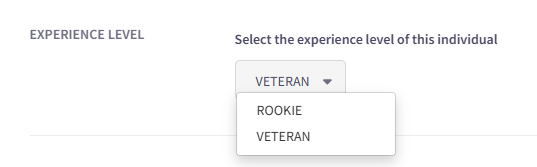
Only 'Veteran' users may engage Autoplay at this time. And we'll show you how that's done by each user soon, but for now let's move along to the next set of control afforded you in the rollout of this feature.
Work Area Settings - Fixed Time or Pace Match
When we described what Autoplay was above we mentioned that the automatic sequencing of steps within Compass is controlled by either the time set in Designer for each step or the pace in which your veteran operator builds each unit. These are referred to as 'Fixed Time' (Designer set) vs. 'Pace Match' (Operator set) sequencing options.

You'll find that each of your separate Work Areas has the Autoplay settings - default is OFF. You can select Fixed Time or Pace Match. If you select Pace Match you can also set the required quantity of units that must be built in order for your Operator's Autoplay sequencing to begin. These first x number of units will essentially train Compass, allowing each operator to build at their own pace.

Once you've saved your selection, this work area has engaged the 'possibility' of Autoplay at each of it's stations. There is still one more layer of control afforded you and your Operators.
Autoplay within Compass
The next time your Operator signs into Compass at a station within this updated Work Area, from their top-right-corner dropdown they will be able to engage Autoplay if they wish.
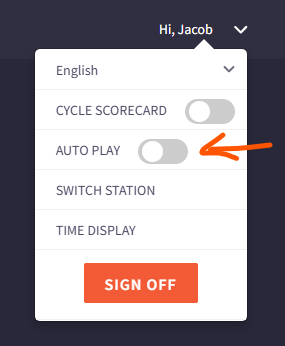
The default is 'off' - in order to turn it on, they will need to toggle the switch and then sign out and back in for full access.
Training Mode
Let's assume you've set your Work Area to 'Pace Match', you require 2 units to be built before Autoplay engages, and your veteran Operator has turned the feature on for their account. Everything you're used to with regard to starting a job will appear the same. However, as soon as you begin building the first step you'll notice our 'Autoplay - Training Mode' blue pill at the bottom of your step instructions.
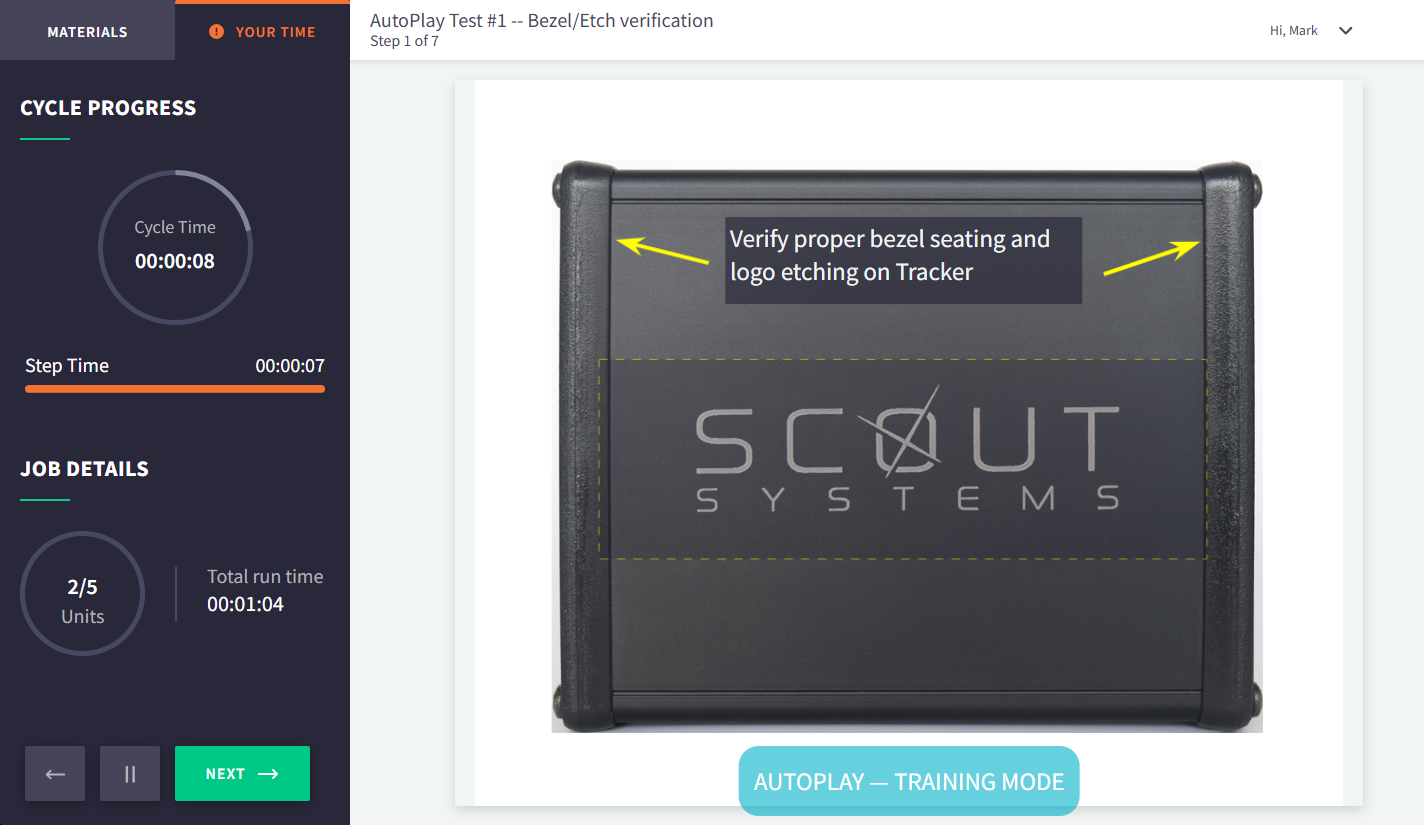
Compass is now paying attention to each step that's built, comparing it to the next unit's same step. Throughout Training Mode, our system will be re-configuring the average build time for each step.
As soon as the required number of training units have been completed your Operators will now begin to see an Autoplay countdown timer appear on each step based on their pace.
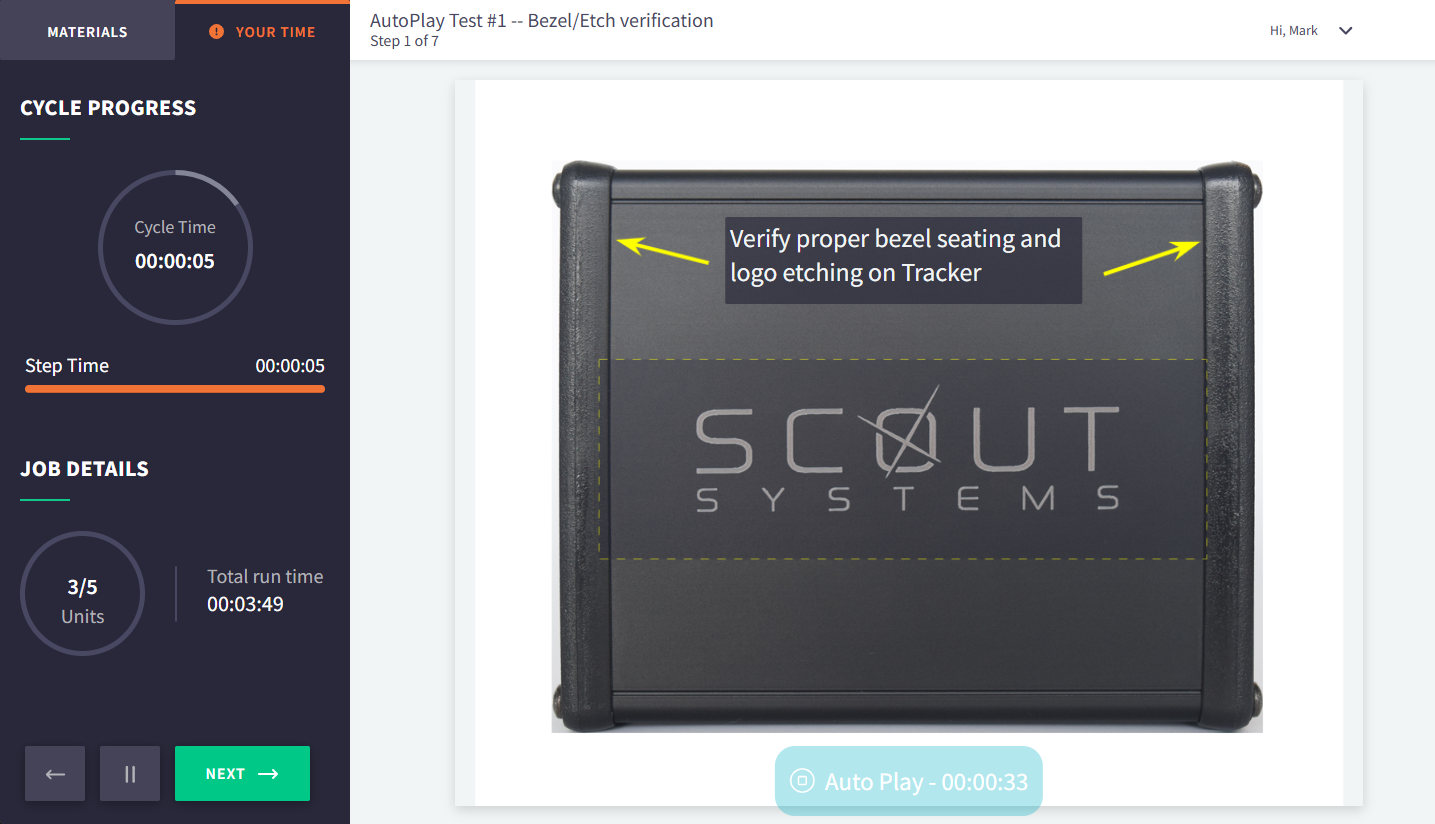
For those that are curious - this is exactly what your Operators will see on every unit if you've set a work area to use Fixed Time Autoplay. The timer will engage automatically based on step times set in Designer. However, the step will NOT include a countdown timer for automatic sequencing of steps if no step time has been set in the Published version of the step.
Let's Talk about some FAQ's
-
What happens in the event that the Operator hits 'Pause'? Autoplay is all about the 'Build' sequence, so pausing during a job is a temporary reprieve from the Build. This means that everything 'Autoplay' is frozen while the operator is on the Pause screen. Returning to the step will re-engage the timers (training or countdown) automatically.
-
How do you handle Scheduled Breaks? The overlay that appears for your Operator during a Scheduled Break will automatically suspend the Autoplay timers. As soon as the break ends, all Autoplay features will resume.
-
Do Safety/Defect warnings cause a problem for Autoplay? No. However, because these warnings are not always visible on every unit's steps, any additional time your operator spends on a step with a warning will simply be absorbed into the ongoing Pace Match average. It should also be noted that if you use Fixed Time on a step that has a warning, the operator must engage the warning (close it) to confirm they saw it before the automated sequencing of the step will be allowed to happen. The Autoplay timer will hold at 00:00 until they do so.
-
What happens if more than one Operator works a job? They are treated the same for Fixed Time settings, but when it comes to Pace Match each operator has their own Autoplay settings, which means each operator has their own training mode and average step times. If Operator A starts the job and Operator B takes over mid-way, Operator B will need to 'train' the system on their pace. If Operator A were to return to the same job, it would remember their pace and return to that sequencing.
-
Do the average step pace values carry over to the next time an Operator builds the same unit? They do not. Autoplay sequencing is about the current job, current operator, on the current step. Data from the past may or may not be relevant to the current build. Thus, we use step data from Designer or pace data from the current job only.
Operator Adjustments
When an Operator is using Pace Match Autoplay, there may be times when they wish to disengage the countdown timer (perhaps due to short-term interruptions and/or perhaps minor re-work mid-step). Teach them to click here:
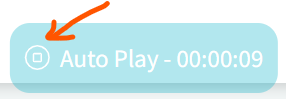
Stopping the Autoplay countdown timer does just that on the front-end for the Operator...but in the backend the timer is still counting down. In the event that the Operator re-engages Autoplay (by clicking 'Resume Autoplay'), Compass will compare the remaining time for that step to the elapsed time. If any time remains, the countdown timer will re-appear. If none remains, the Operator will be shown a quick 3-second countdown before the automatic step sequencing happens, and Pace Match averages will be adjusted for the next unit.
Nearly the same thing happens if the Operator were to manually engage the NEXT button (or via Tracker inputs such as buttons/pedals) or the BACK arrow button. Compass will do a quick verification of any remaining time, store and/or display that time, and if necessary adjust the Pace Match average step time for future units to match the new data.
Taking Advantage of Autoplay
There are so many features we build into HQ and Compass that are designed to provide flexibility for your staff and operators. But sometimes one comes along that has the chance to change the way your team uses our system. Autoplay is one of those!
You may decide to roll this out everywhere, or just in one test work area to begin with. You may decide that no one is worthy of this hands-off flexibility and you set every user to 'Rookie', or you may decide some of your 'Veterans' are worthy of testing out this new feature.
No matter what you choose, Autoplay should create a smoother path forward for operator buy-in, full station visibility, and ultimately more consistent data for your team.
We look forward to seeing how everyone deploys this feature. Enjoy Autoplay!
And from all of us at Scout Systems - to our US based customers, we wish you a Happy Thanksgiving!